
Download Video Uploader – Fast, Free & Secure YouTube Batch Upload Tool
Overview
Video Uploader for YouTube is a lightweight desktop application designed to simplify the often‑tedious process of publishing videos to the world’s biggest video platform. Whether you are a content creator, a social‑media manager, or a small business owner who needs to push multiple videos on a regular schedule, this tool lets you upload videos with just a few clicks. The core value proposition is speed: you can drag‑and‑drop a whole folder of videos, assign titles, descriptions, tags, and privacy settings in bulk, and let the software handle the rest.
The interface follows a clean, modern design that feels familiar to anyone who has used standard YouTube Studio, yet it adds powerful batch‑processing capabilities that are missing from the native web UI. Security is built‑in – all authentication is performed through OAuth 2.0, ensuring your account credentials never touch the local machine. The app also supports scheduled uploads, so you can prepare a batch today and have the videos go live automatically at chosen times.
In short, Video Uploader saves time, reduces manual errors, and gives power users a reliable, free solution for managing large video libraries on YouTube.
Key Features That Make Bulk Upload a Breeze
- Batch Upload: Select multiple video files (MP4, MOV, AVI, etc.) and upload them all at once.
- Bulk Metadata Editing: Apply titles, descriptions, tags, categories, and privacy settings to many videos simultaneously.
- Scheduled Publishing: Set future publish dates for each video, perfect for maintaining a consistent posting calendar.
- OAuth 2.0 Authentication: Secure sign‑in directly with your Google account; no passwords stored locally.
- Progress Tracker & Retry Logic: Real‑time upload progress bars and automatic retries for failed transfers.
- Thumbnail Management: Upload custom thumbnails for each video or use auto‑generated frames.
- Cross‑Platform Support: Available for Windows 10/11, macOS Catalina and later, as well as Linux distributions via Electron.
- Free Updates: Regular updates bring new YouTube API features, bug fixes, and performance improvements at no cost.
Each of these features is crafted to reduce the repetitive steps that creators often face when handling large video collections. For example, the bulk metadata editor lets you import a CSV file containing all the necessary fields, then maps each row to the corresponding video automatically. This eliminates the need to open YouTube Studio for every single upload, cutting down on both time and the chance of human error. The scheduling engine also respects YouTube’s quota limits, spreading uploads throughout the day to avoid throttling. Together, these capabilities turn a task that might take hours into a matter of minutes.
Installation, Setup & Daily Workflow
Step‑by‑Step Installation
Getting Video Uploader up and running is straightforward. First, visit the official website and click the Download for Windows (or macOS/Linux) button. The installer is a small .exe (or .dmg / .AppImage) file under 30 MB, making it quick to download even on slower connections. Run the installer and follow the on‑screen prompts – the wizard will ask you to agree to the license, choose an installation folder, and optionally create a desktop shortcut. The software does not require any additional runtime because it bundles the latest Electron framework, ensuring compatibility with modern operating systems.
First‑Time Configuration
After launching the app, you’ll be greeted by a clean welcome screen that prompts you to sign in with your Google account. Click the Connect to YouTube button, which opens a secure OAuth dialog in your default browser. Once you grant the required permissions (upload, manage videos, and edit metadata), the app receives an access token that is stored securely on your device. No passwords are ever saved, and the token is refreshed automatically.
Typical Daily Workflow
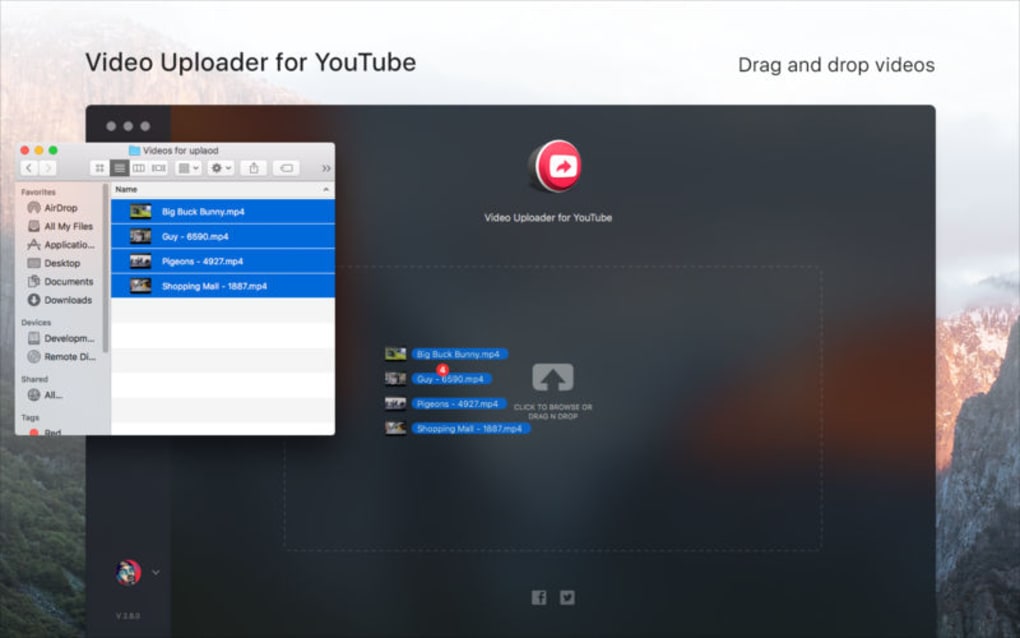
To start a batch upload, simply drag a folder containing your videos onto the main window or use the Add Files button. The software scans the folder, lists each video, and allows you to edit metadata in a spreadsheet‑like view. You can import a CSV file with pre‑filled fields, or edit directly in the grid.
When you’re satisfied, click Upload All. The progress panel shows each file’s upload status, estimated time remaining, and any API warnings. If you have scheduled publishing, choose the desired date and time for each video in the Schedule column before hitting upload.
Once the queue finishes, you’ll receive a desktop notification confirming successful completion, and a summary report is saved to your Documents/VideoUploader/Reports folder for future reference.
This workflow is designed to be repeatable: creators can prepare a weekly batch on Sunday, set publish dates for Monday through Friday, and let the app handle the rest, freeing up valuable creative time.
Compatibility, System Requirements & Supported Platforms
Video Uploader runs natively on the three major desktop operating systems:
- Windows: 10 (64‑bit) and Windows 11 – requires .NET 4.8 runtime (included in the installer).
- macOS: Catalina (10.15) and later – requires macOS Gatekeeper approval for third‑party apps.
- Linux: Ubuntu 20.04+, Fedora 33+, or any distribution supporting Electron with glibc 2.28 or newer.
Hardware requirements are modest: a dual‑core CPU, 2 GB RAM, and at least 200 MB of free disk space for the application itself. Because uploads are performed over the internet, a stable broadband connection (minimum 5 Mbps upload speed) is recommended for large batches. The app also respects system proxy settings, making it usable in corporate environments with restricted internet access.
International users will appreciate the built‑in language detection; the UI automatically switches to the language set in the operating system, with full translations for English, Spanish, French, German, Japanese, and Korean. If you need a specific locale not listed, you can manually select it from the Preferences → Language menu.
Overall, Video Uploader’s compatibility strategy focuses on delivering a consistent experience across platforms while leveraging each OS’s native security features. Whether you’re on a Windows workstation in a studio, a MacBook in a coffee shop, or a Linux server for automated uploads, the software behaves the same way, ensuring predictable results.
Pros, Cons, Frequently Asked Questions & Final Verdict
Pros
- Free to use with regular feature‑rich updates.
- Robust batch uploading and metadata editing capabilities.
- Secure OAuth 2.0 authentication – no password storage.
- Cross‑platform support for Windows, macOS, and Linux.
- Built‑in scheduler for automated future publishing.
- Lightweight installer (<30 MB) and low system requirements.
Cons
- No native mobile app – uploads must be performed from a desktop.
- Advanced analytics (e.g., real‑time view counts) are not included.
- Initial OAuth permission request may confuse less‑tech‑savvy users.
FAQ
Is Video Uploader completely free?
Yes, the core application is free. Optional premium add‑ons (like advanced analytics integration) may be offered in the future, but the batch upload, scheduling, and metadata features remain free forever.
Can I upload videos larger than 2 GB?
Absolutely. Video Uploader respects YouTube’s upload limits, which currently allow files up to 256 GB or 12 hours in length, whichever comes first. The software splits large files into chunks if needed to improve reliability.
How does the app handle failed uploads?
Failed uploads are automatically retried up to three times. After the final attempt, the video is marked as “Failed” in the queue, and you receive a detailed error report so you can address the issue (e.g., network timeout, invalid file format).
Do I need a YouTube Partner account to use the scheduler?
No. The scheduling feature works with any standard YouTube channel. The only requirement is that the channel has at least one verified upload capability, which is true for all regular accounts.
Is there any limit on the number of videos I can upload in one batch?
Practically, the limit is governed by YouTube’s daily quota (10,000 videos per day per channel). Video Uploader will process as many files as you add, stopping gracefully if the quota is reached.
Final Verdict & Call to Action
Video Uploader for YouTube hits the sweet spot between simplicity and power. Its free price tag, cross‑platform availability, and robust batch capabilities make it a must‑have tool for anyone who publishes regularly on YouTube. While it lacks a mobile companion and deep analytics, those are niche features that most creators don’t need for day‑to‑day uploads. If you’re tired of repetitive manual entry in YouTube Studio, give Video Uploader a try – download it today, set up your first batch, and watch your productivity soar.
Download Video Uploader now and start uploading smarter, not harder.







